
How to Link Vehicles to Permits in the Transportation Portal
June 8, 2023
Instructions
- Go to https://aztecs.t2hosted.com/Account/Portal using Microsoft Edge or Mozilla Firefox. Google Chrome may not function properly.
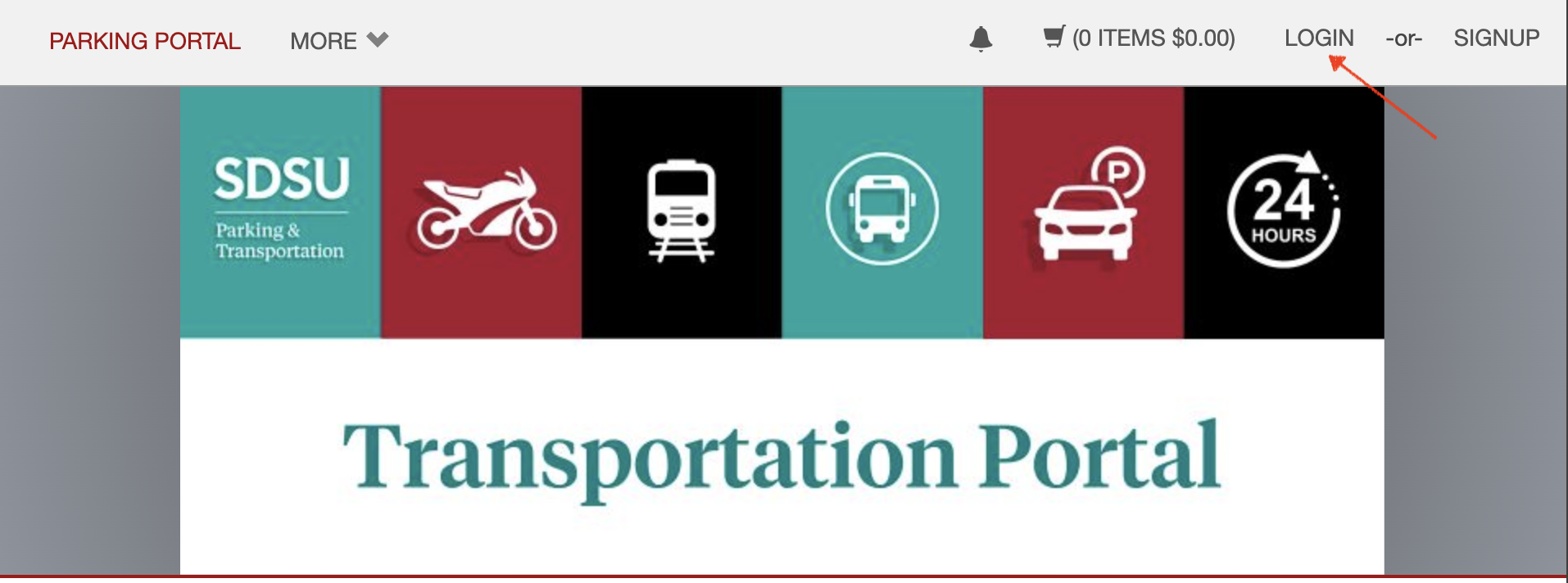
- Click LOGIN in the upper right-hand corner.
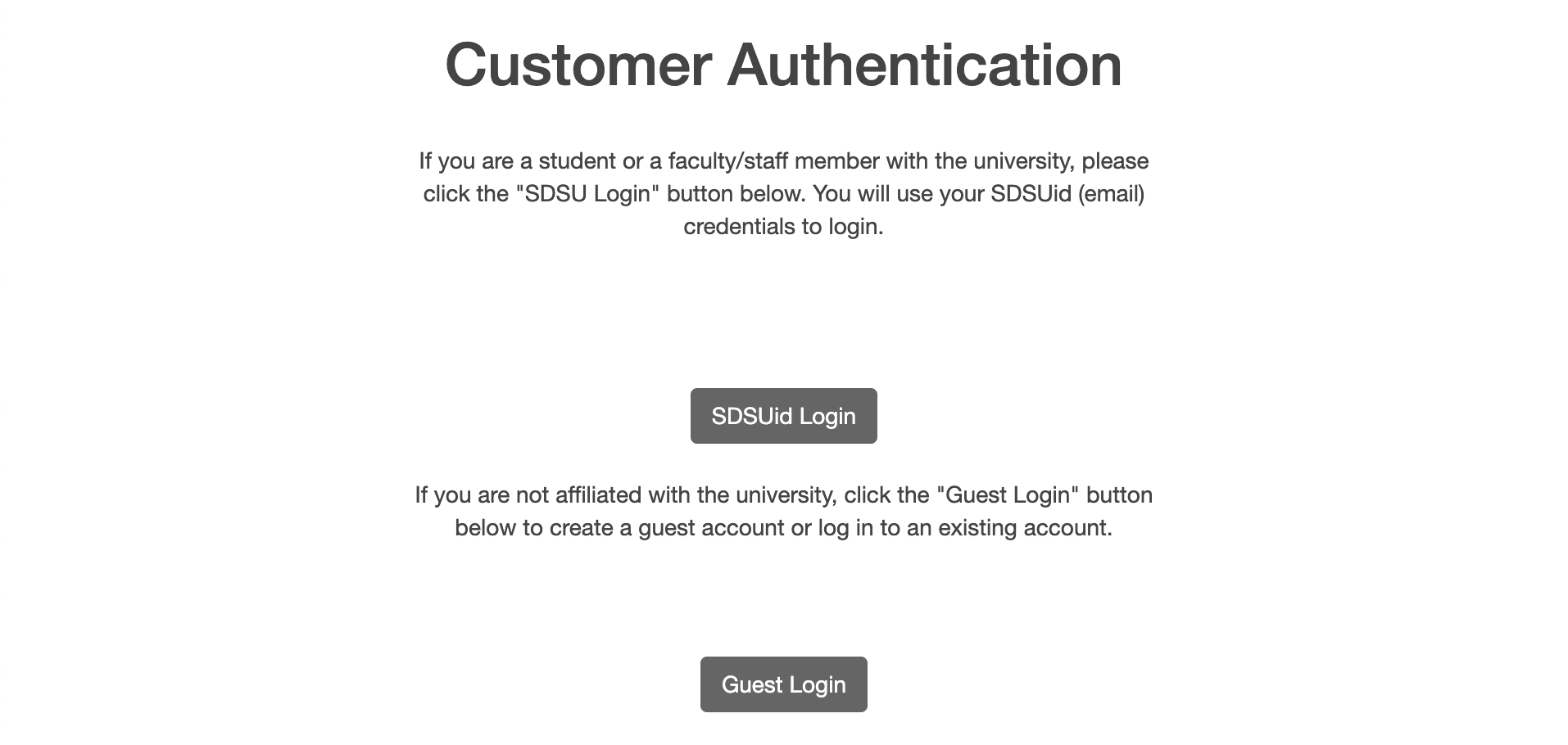
- If you are a student or faculty/staff member, click on SDSUid Login. If you are not affiliated with SDSU, click on Guest Login and skip to step 7.
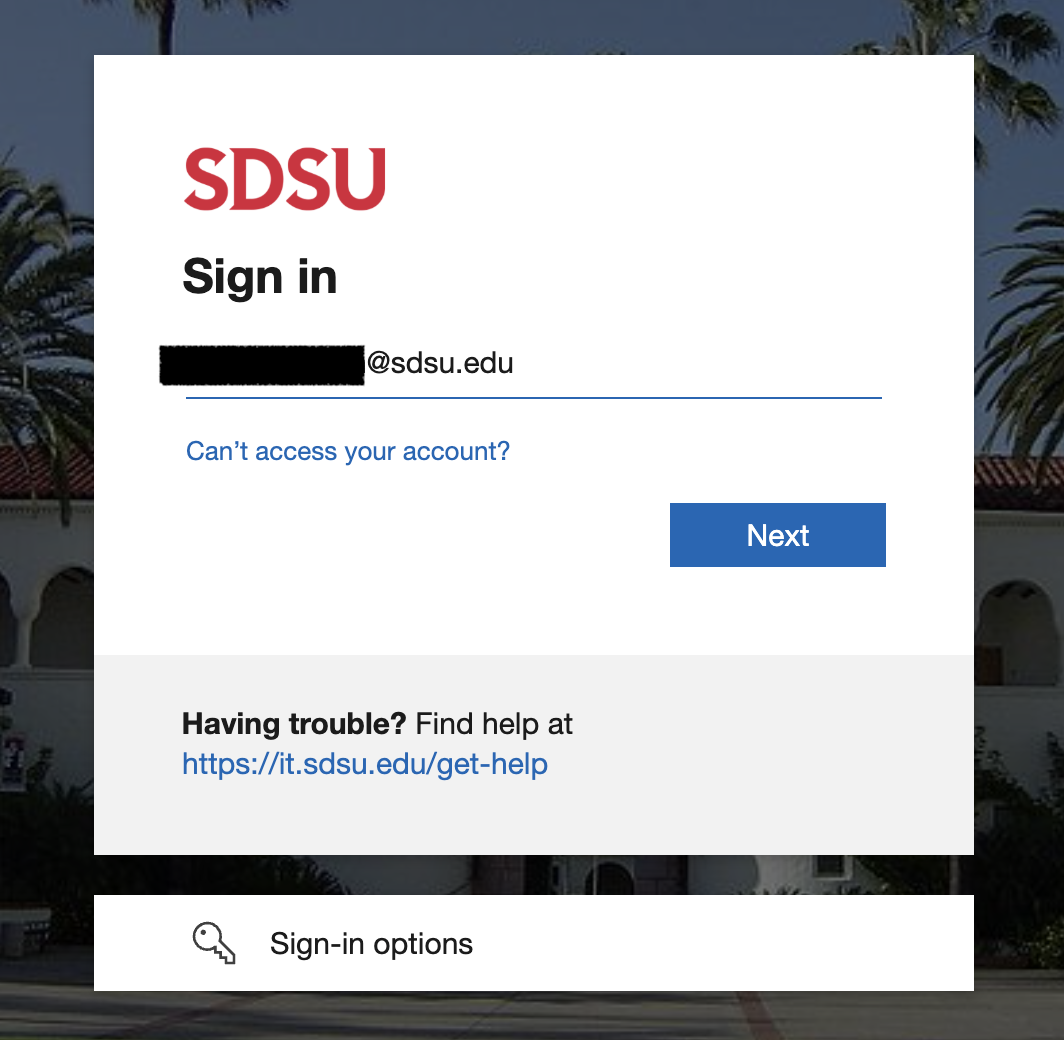
- Enter/verify your SDSU email address is correct. Click Next.
- Enter your SDSUid password. Click Sign in.Go through the steps of Duo-Authentication, using your mobile device.
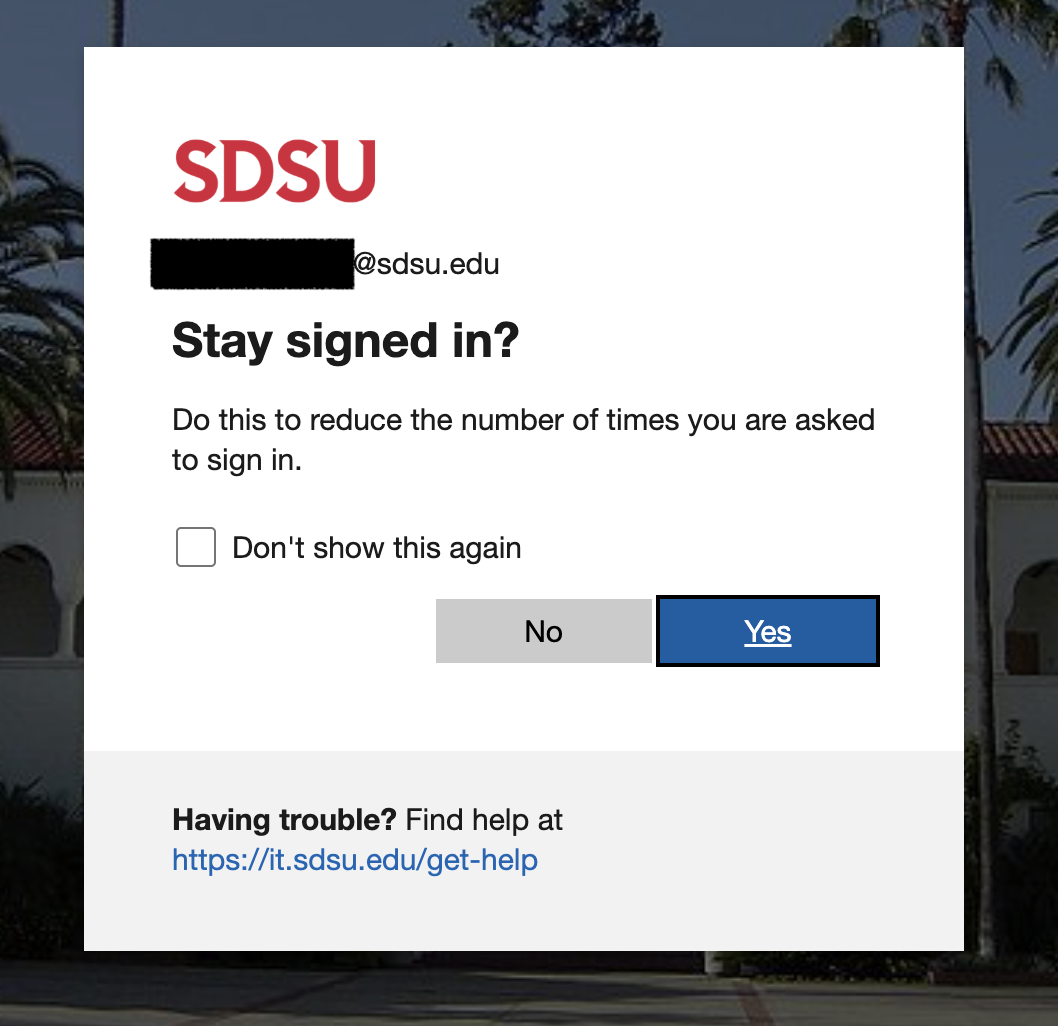
- If you would like to automatically stay signed in under your SDSU user ID, check the box and click Yes. If not, leave the box unchecked and click No.
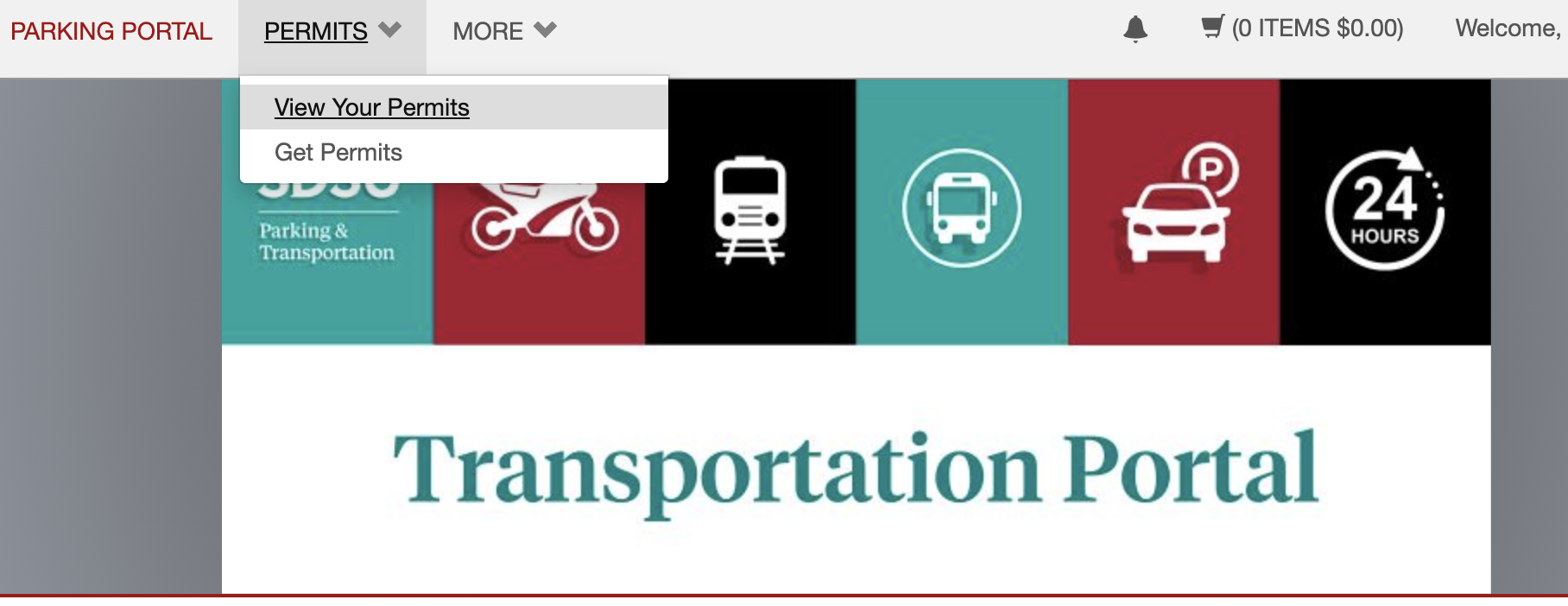
- Once logged in, click PERMITS at the top of the screen. Then click View Your Permits.
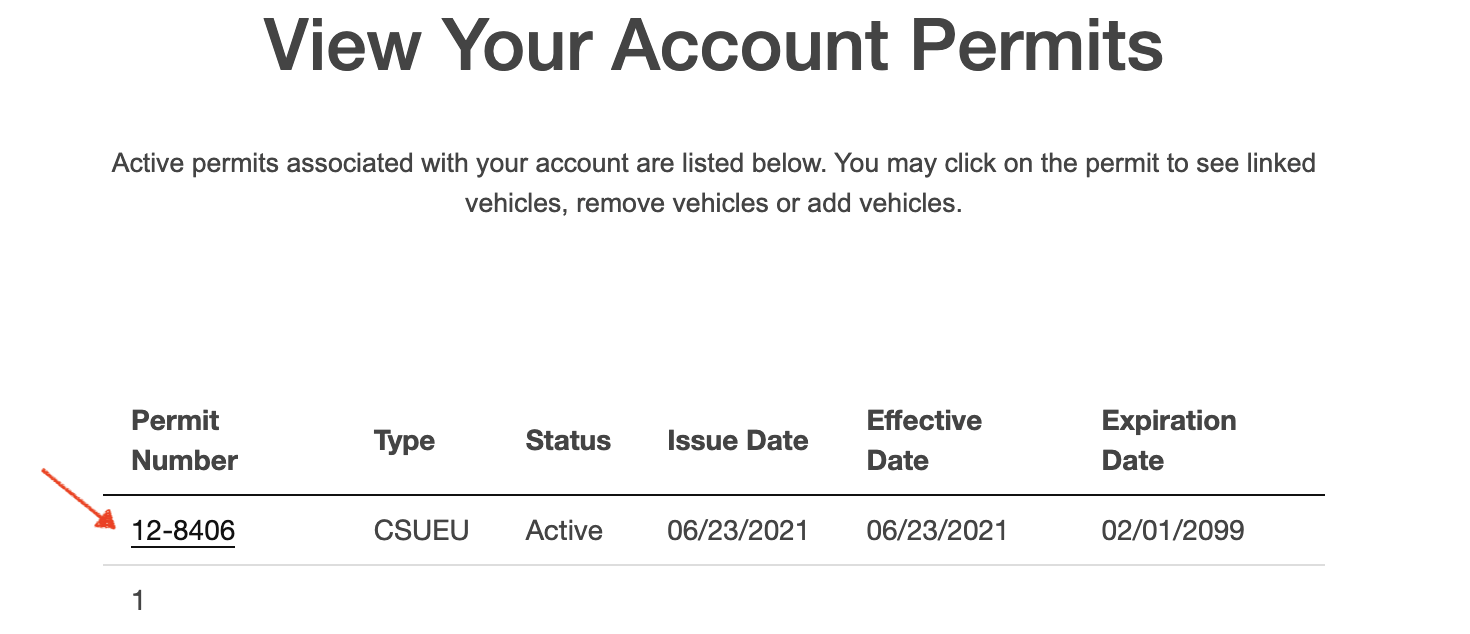
- Click on your permit number.
- Click Add Vehicles To Permit.

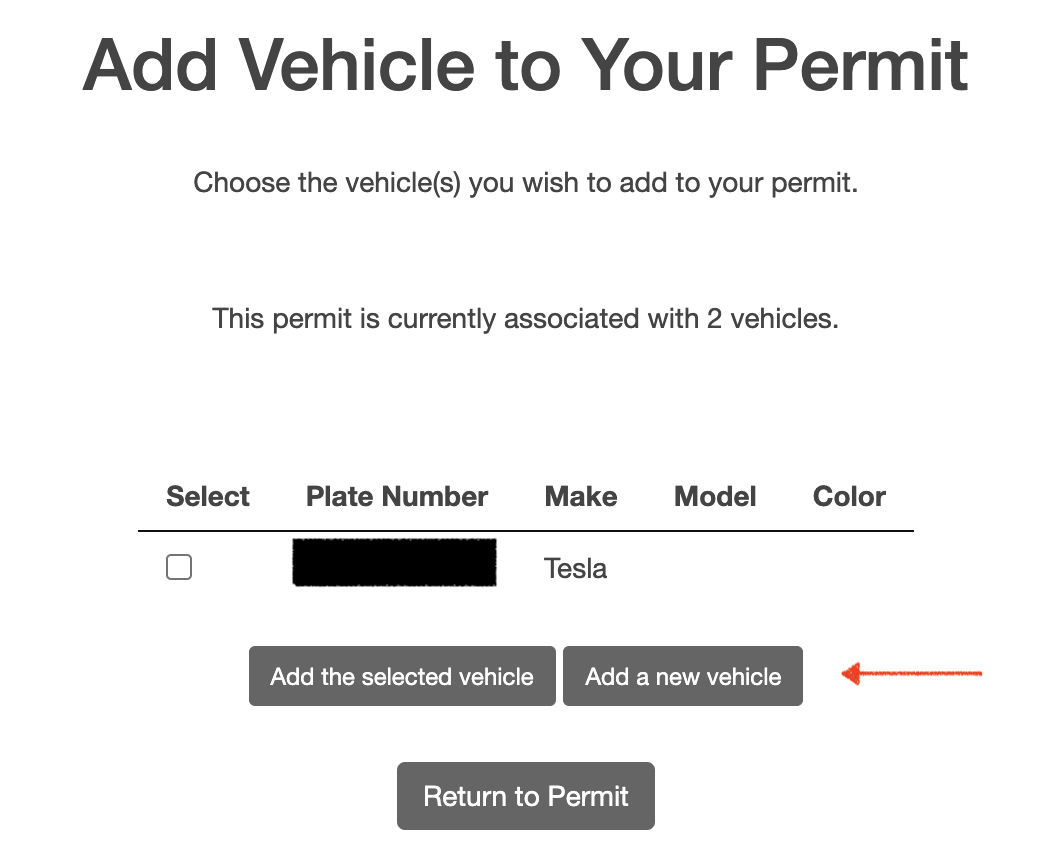
- If you have not added any vehicles to your account or need to add an additional vehicle, click Add a new vehicle. If you have already added a vehicle to your account but need to link it to your permit, skip to step 12.
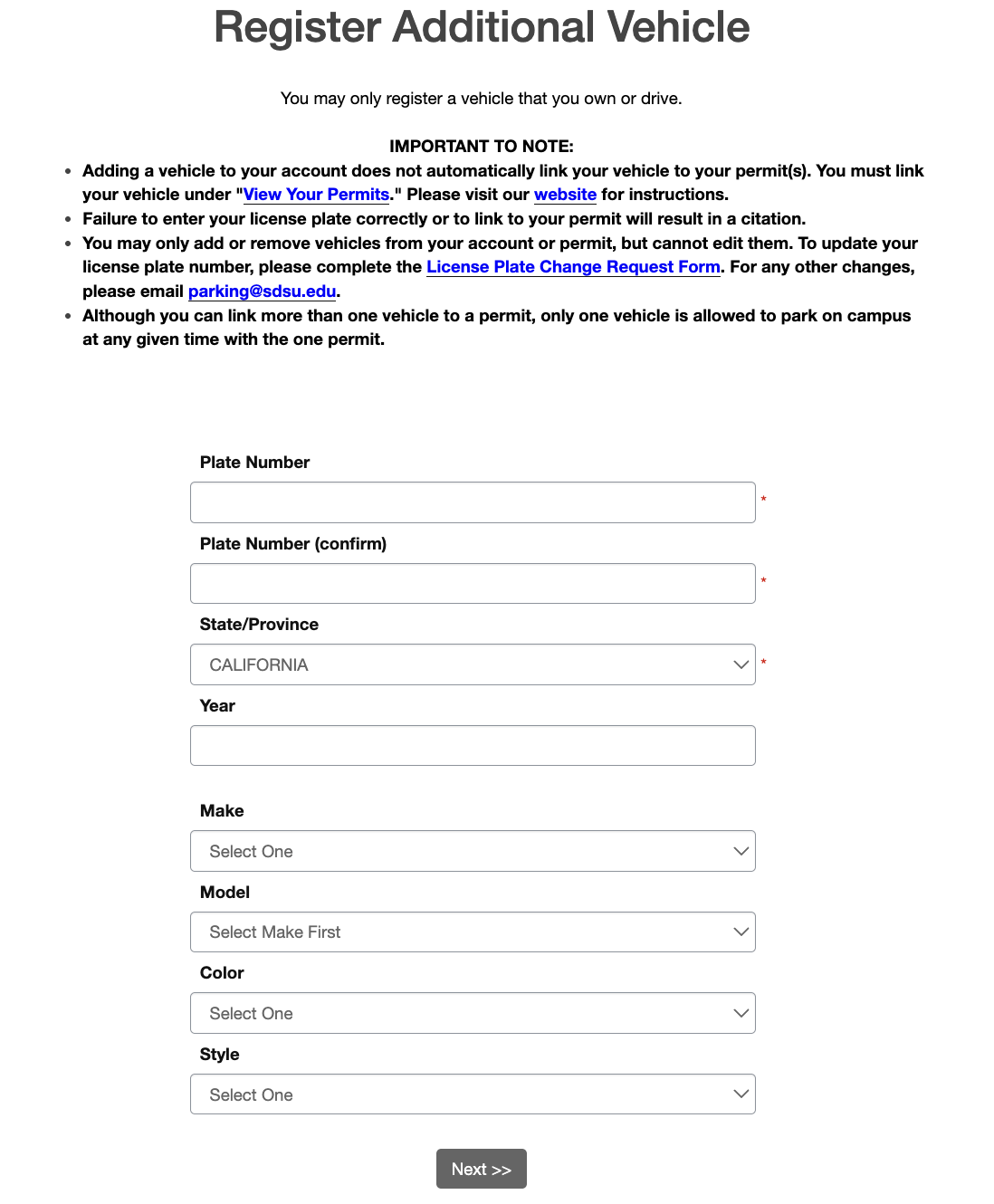
- Enter your vehicle information. If you've added a temporary license plate, remember to complete the License Plate Change Request Form once your permanent plate has been issued. If the vehicle added is a rental, please email [email protected] to provide us with a date in which you'd like the vehicle removed from your account. Click Next.
- Check the box(es) for the vehicle(s) that you would like to link. Then click Add the selected vehicle.

- You should now see the license plate number(s) listed on Your Permit Details page under Associated Vehicles.