
How to Purchase a Permit in the Transportation Portal
June 8, 2023
Instructions
For students and faculty/staff
- Go to https://aztecs.t2hosted.com/Account/Portal using Microsoft Edge or Mozilla Firefox.
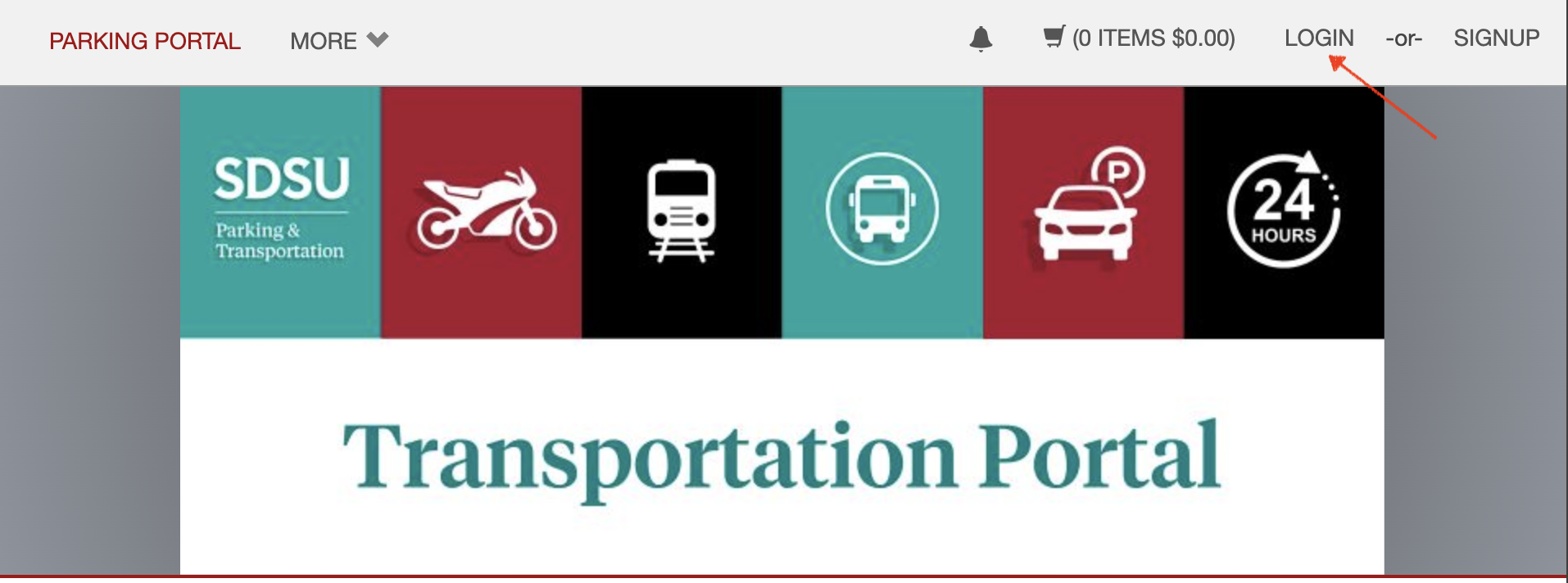
- Click LOGIN in the upper right-hand corner.
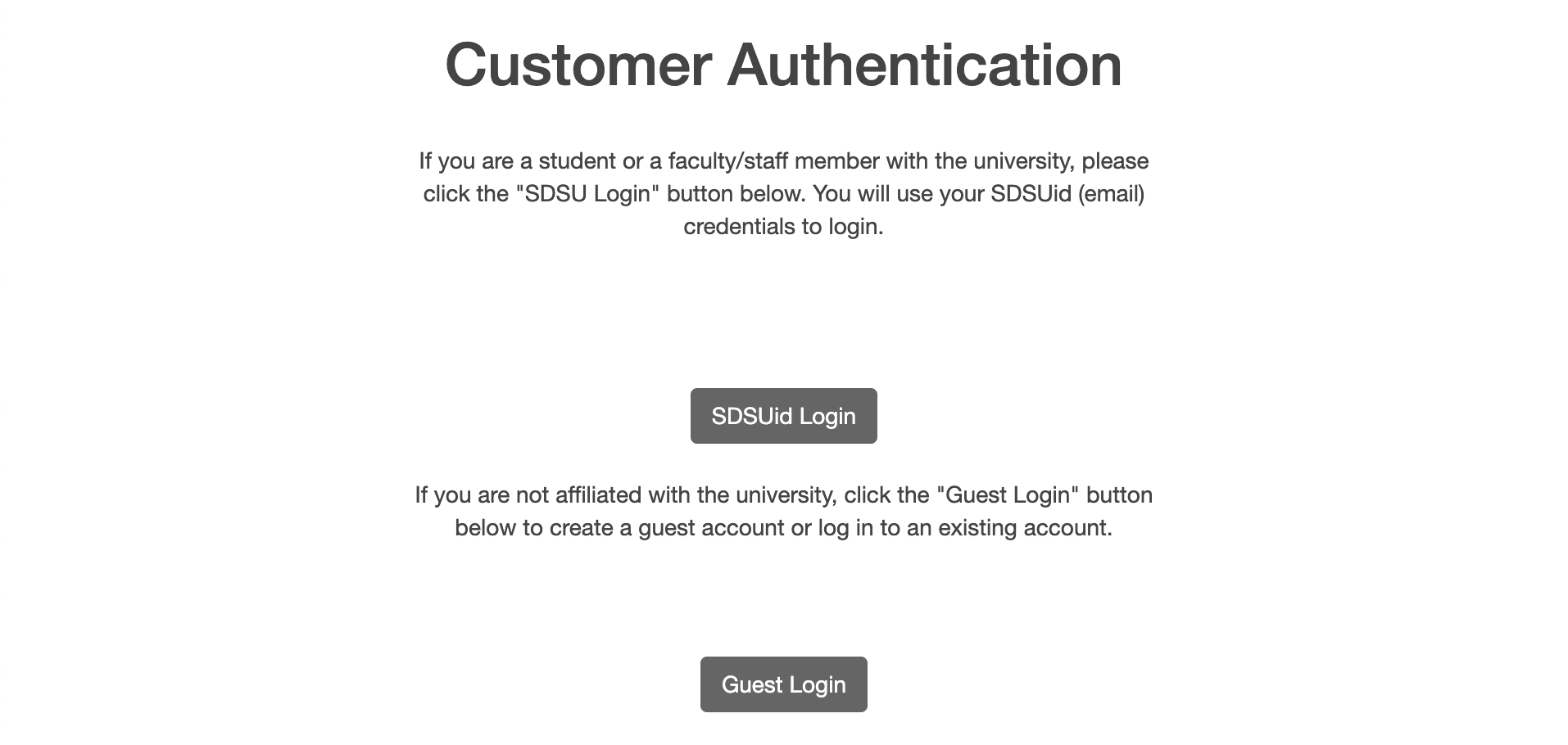
- If you are a student or faculty/staff member, click on SDSUid Login.
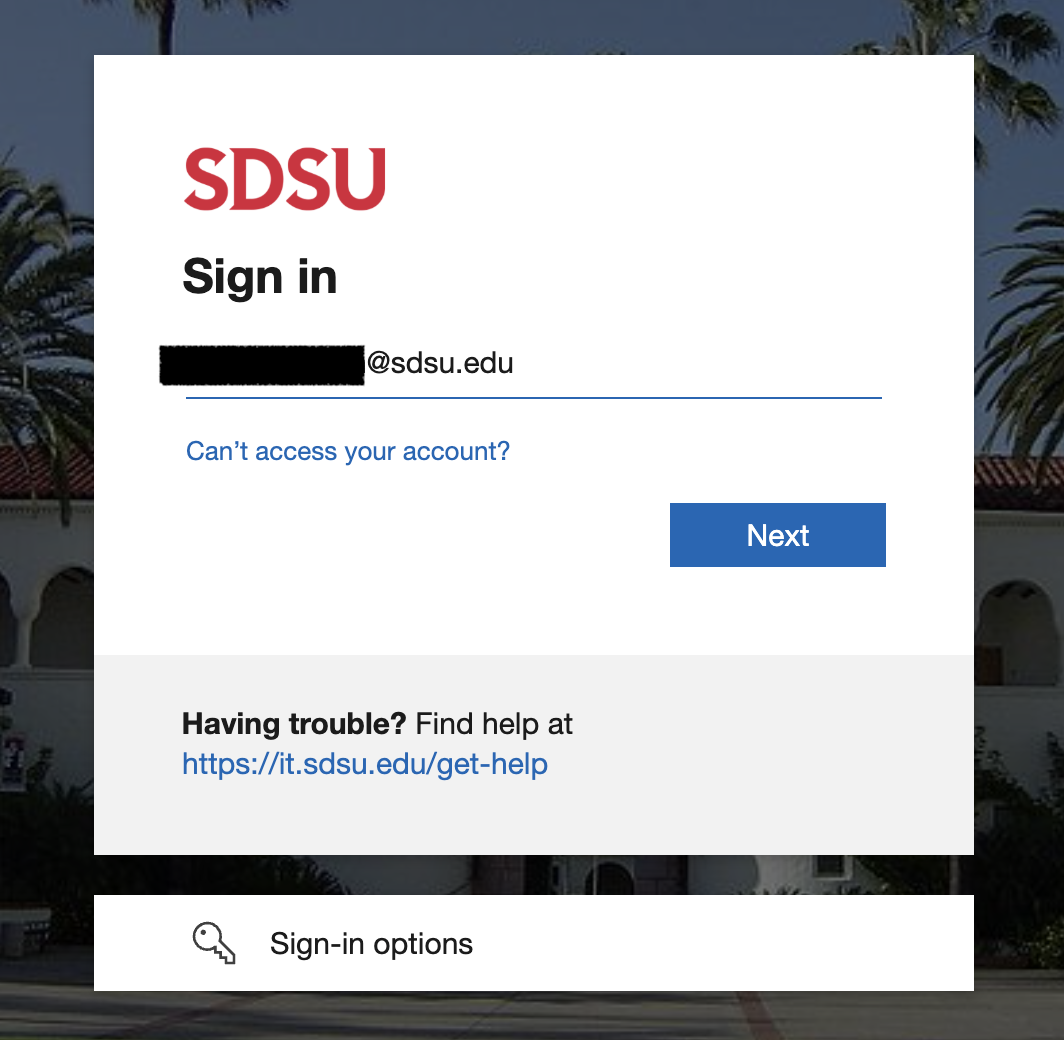
- Enter/verify your SDSU email address. Click Next.
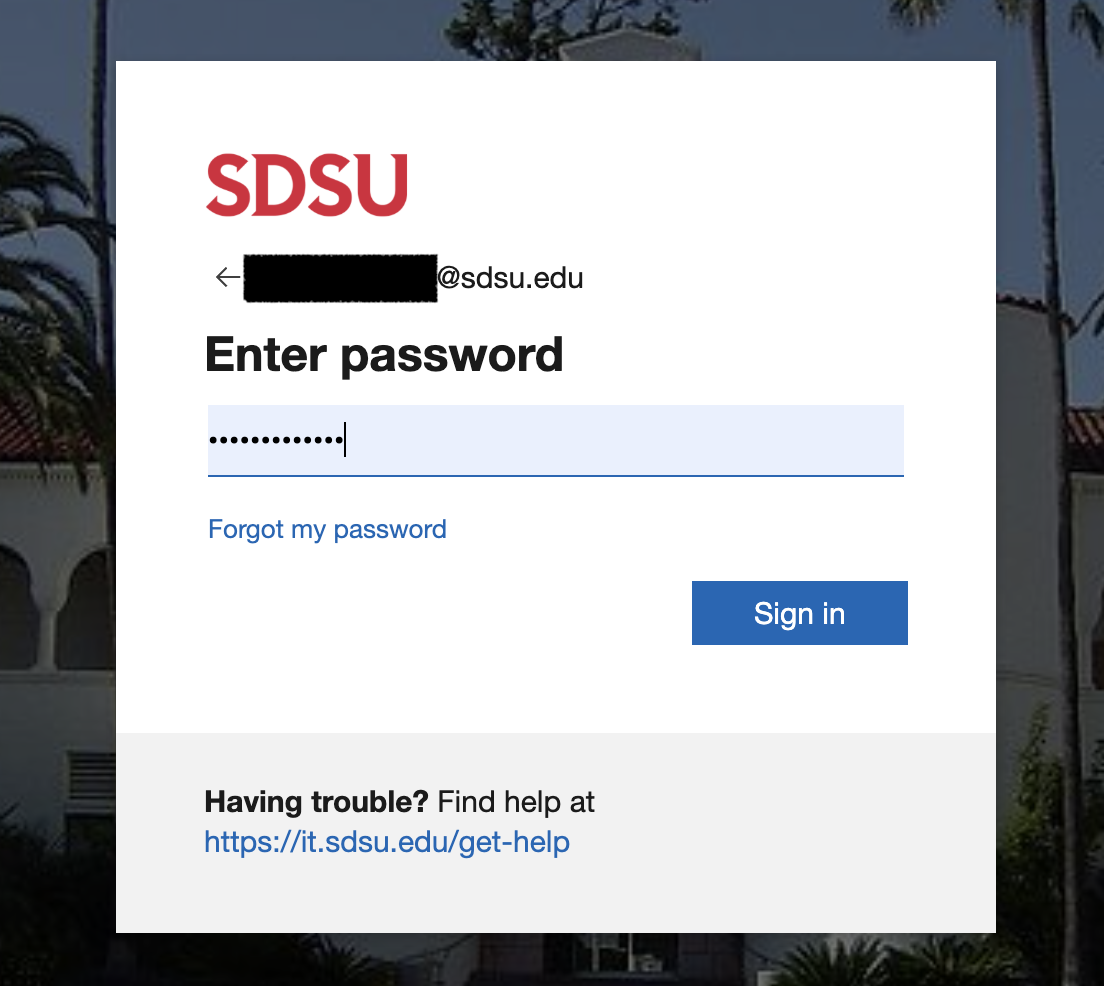
- Enter your SDSUid password. Click Sign in.
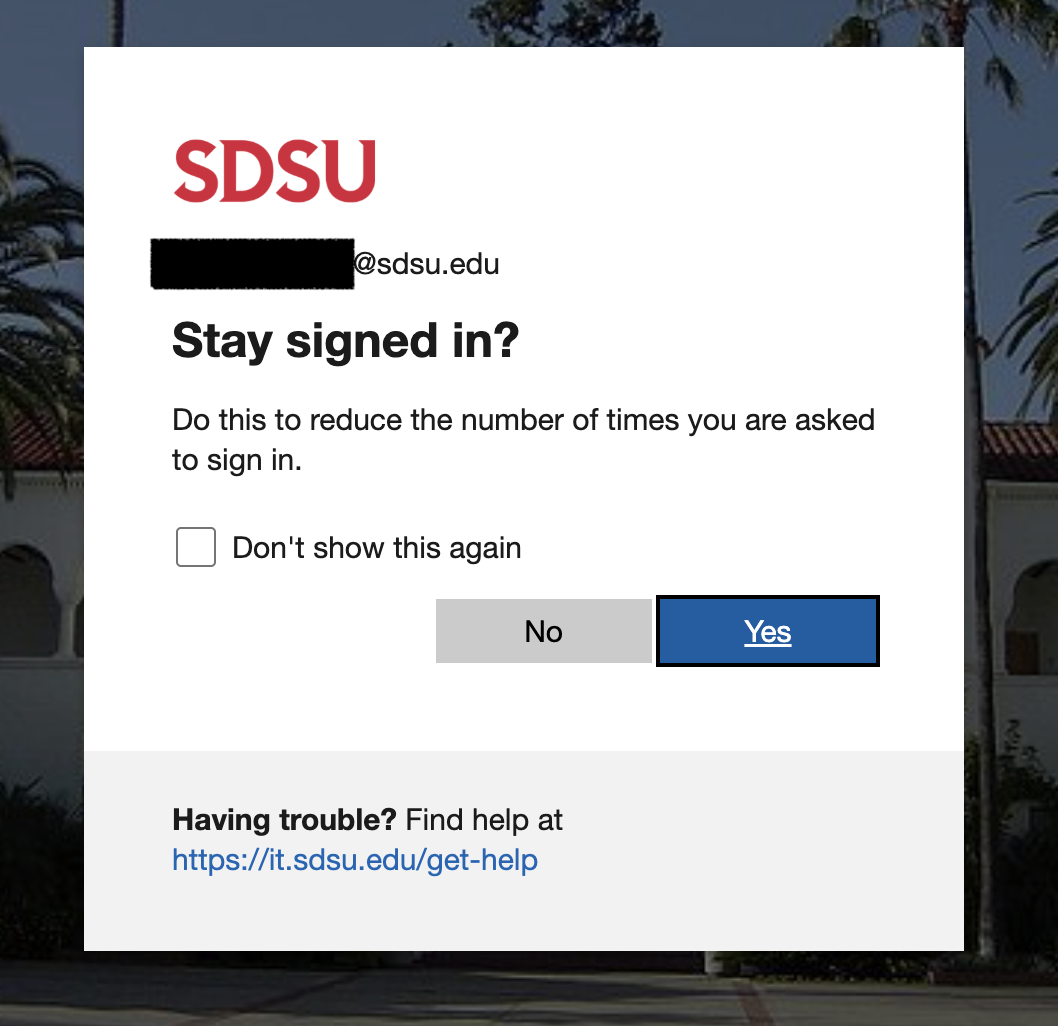
- If you would like to automatically stay signed in under your SDSU user ID, check the box and click Yes. If not, leave the box unchecked and click No.
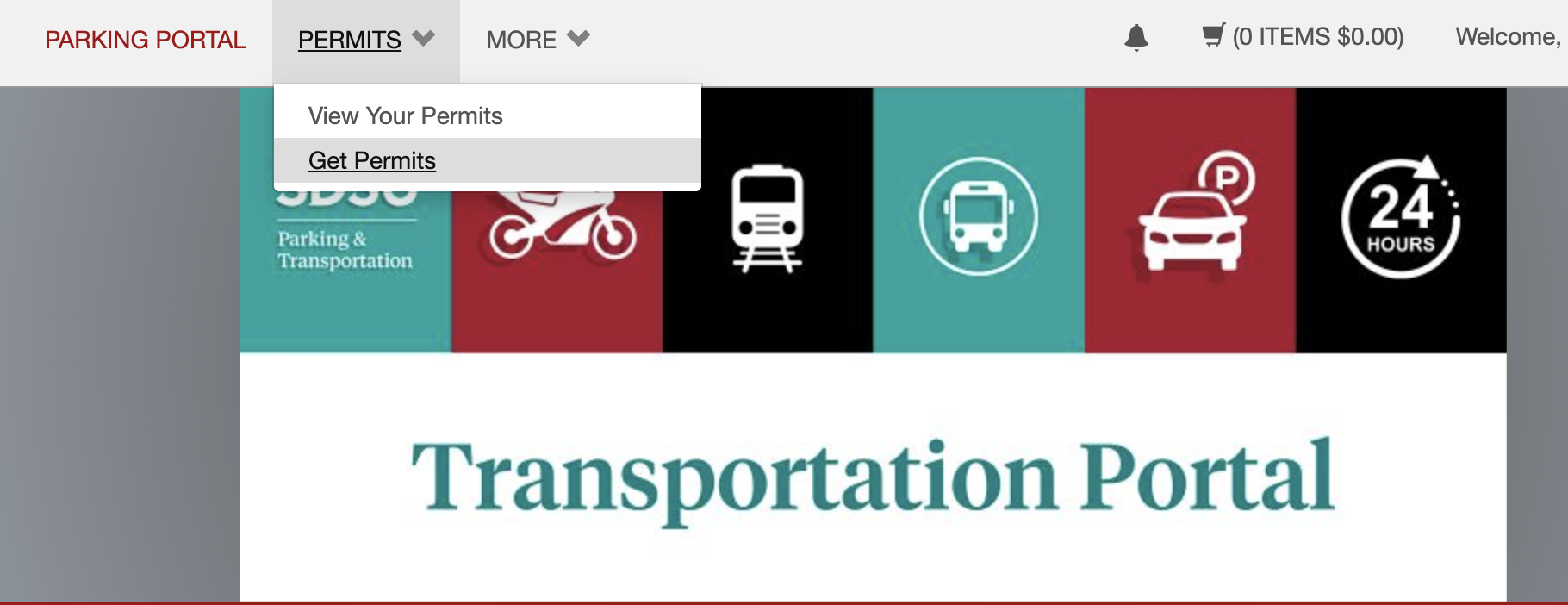
- Next, click PERMITS, and then click Get Perimts to purchase a permit.
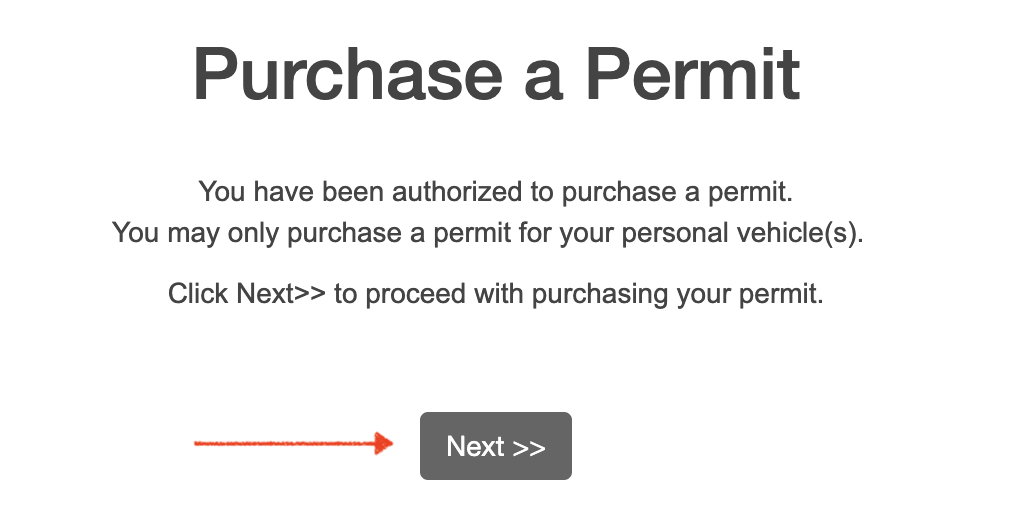
- Click Next.
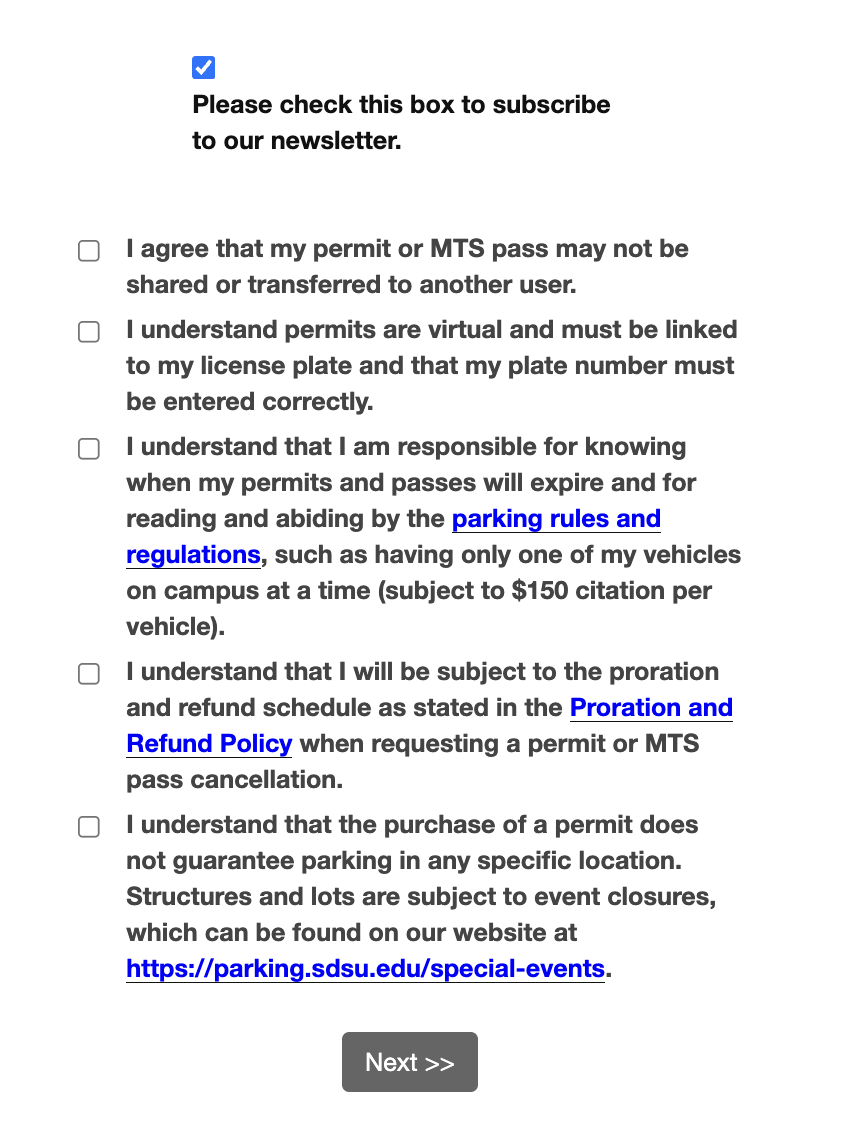
- Select the check box next to the permit you would like to purchase. Check the boxes agreeing to the terms. Then click Next.

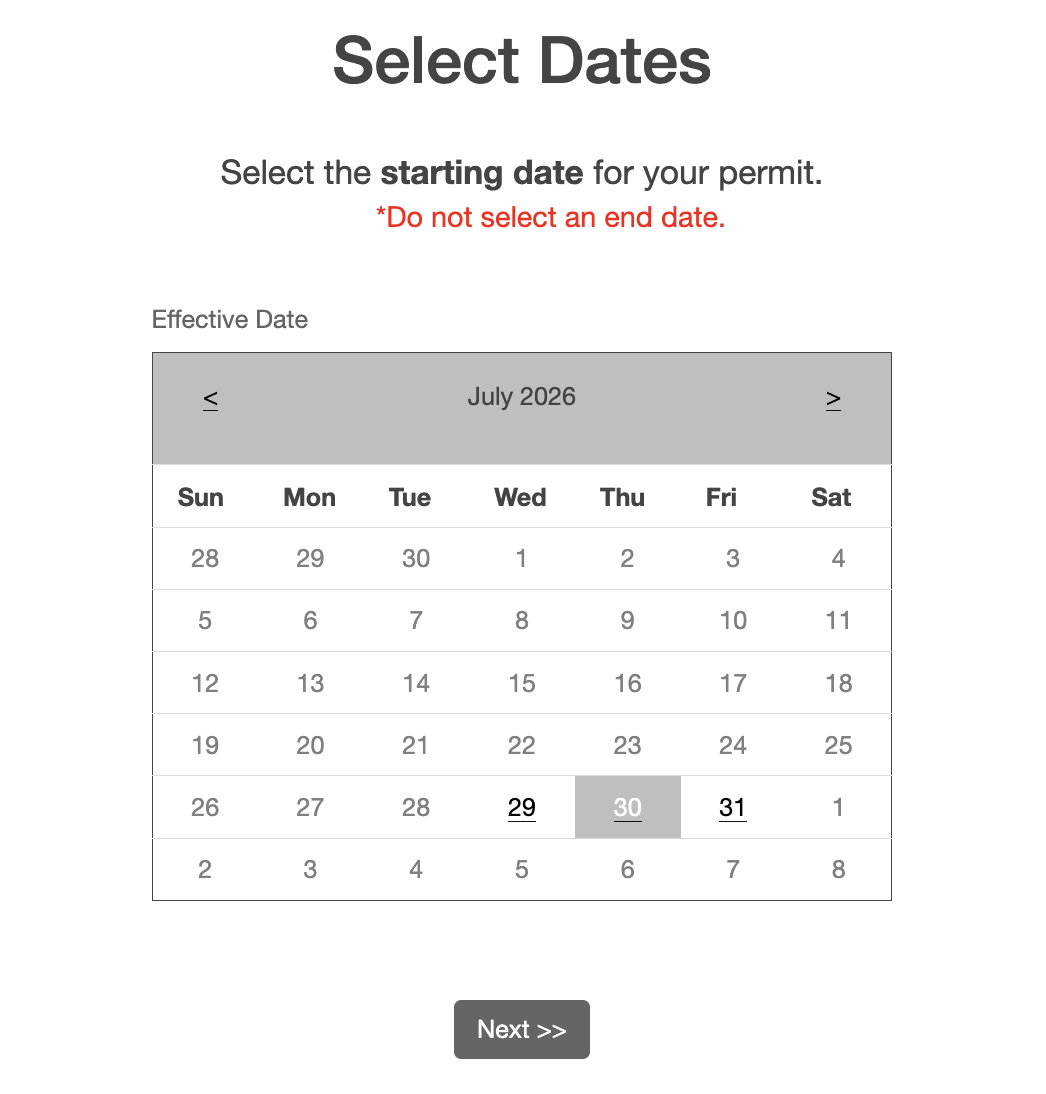
- If you are purchasing a daily, weekly or monthly permit, select the date you would like the permit to start. Do not select an end date. Click Next.
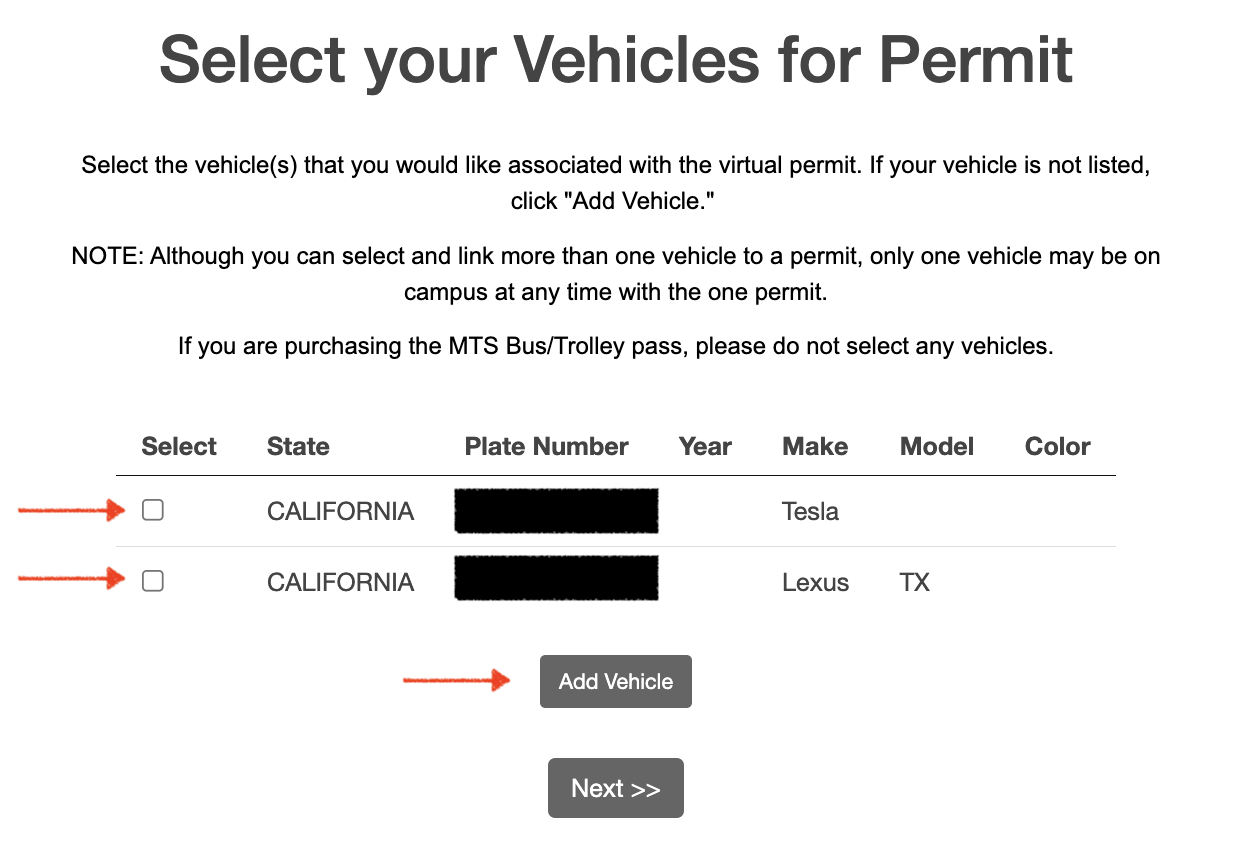
- Check the box(es) for any vehicles you wish to add to the permit. Or, if you need to add a new vehicle, click Add vehicle and follow the prompts. Then click Next.
- If additional permit(s) are needed, complete steps 7-11.
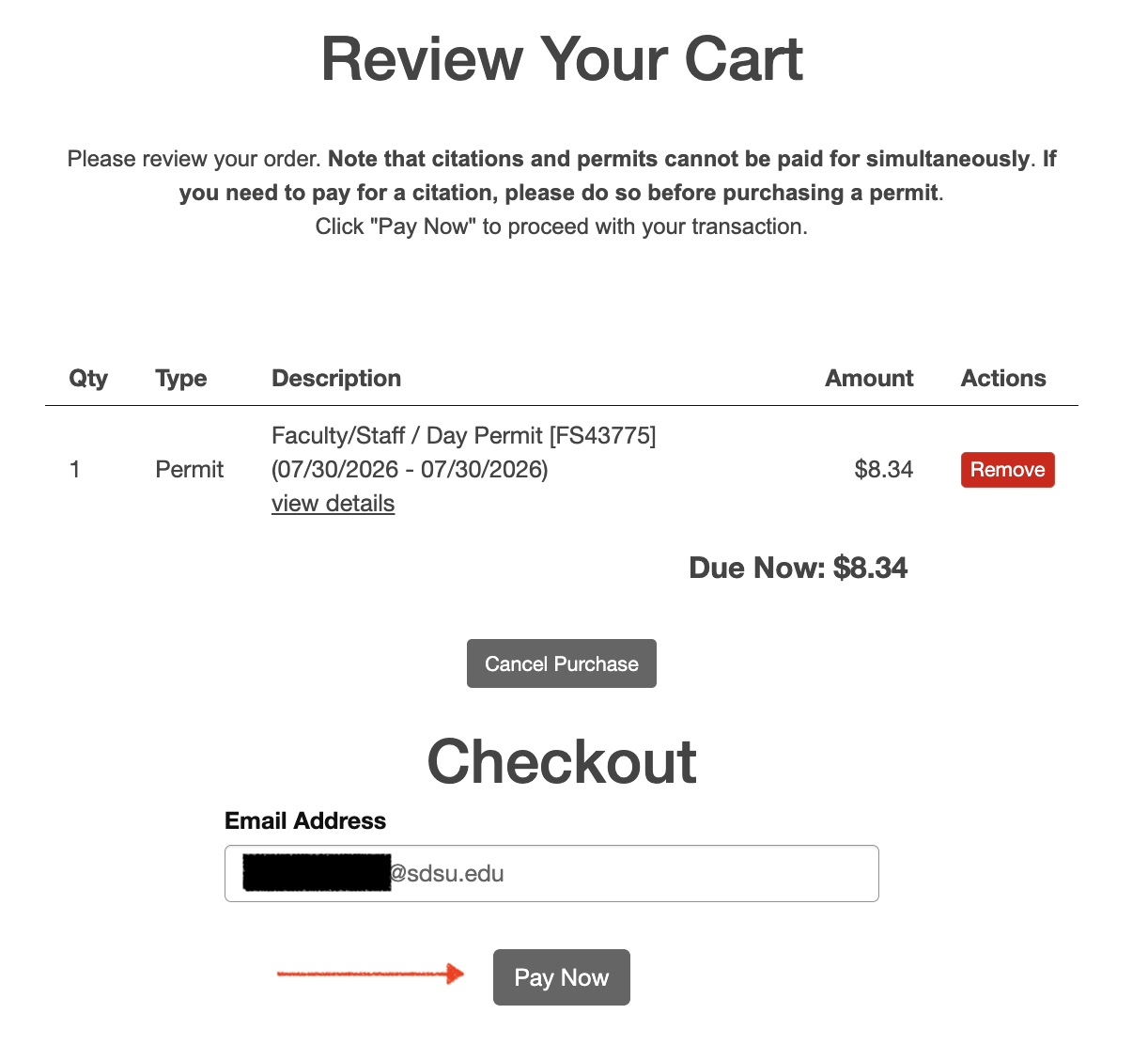
- Review your cart and email address that you would like your receipt sent to. Click Pay Now.
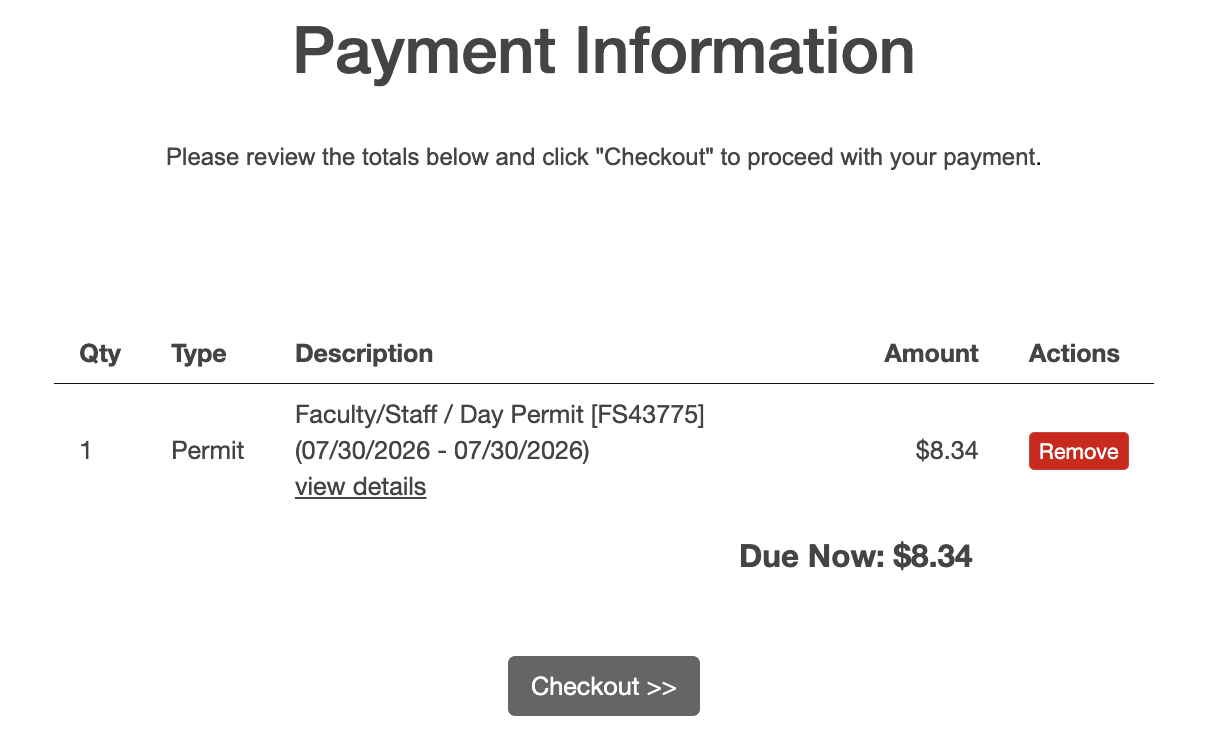
- Your permit number and total will be displayed again. Click Checkout.
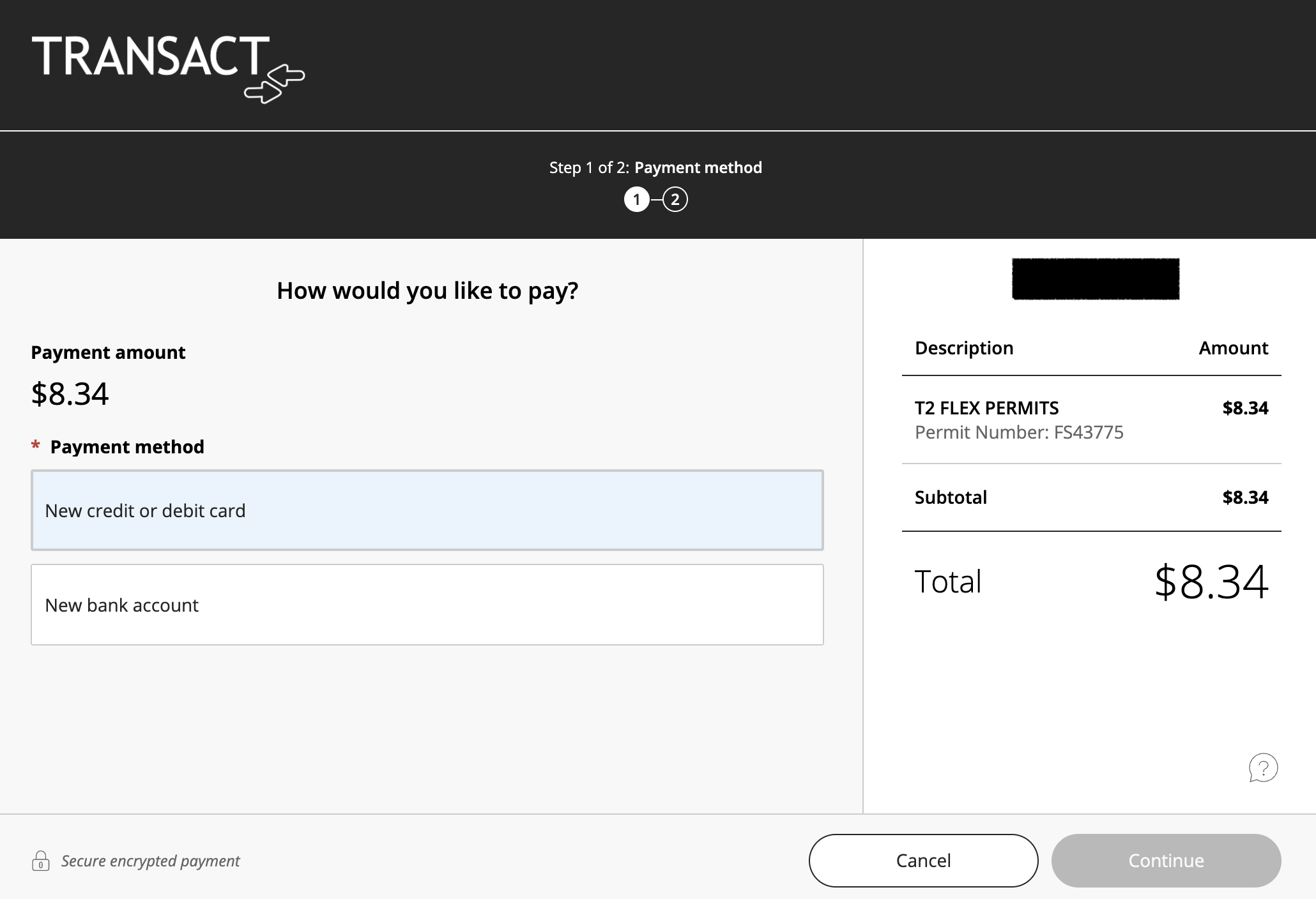
- Select your Method of Payment. Click Continue. To pay by bank account, skip to Step 18.
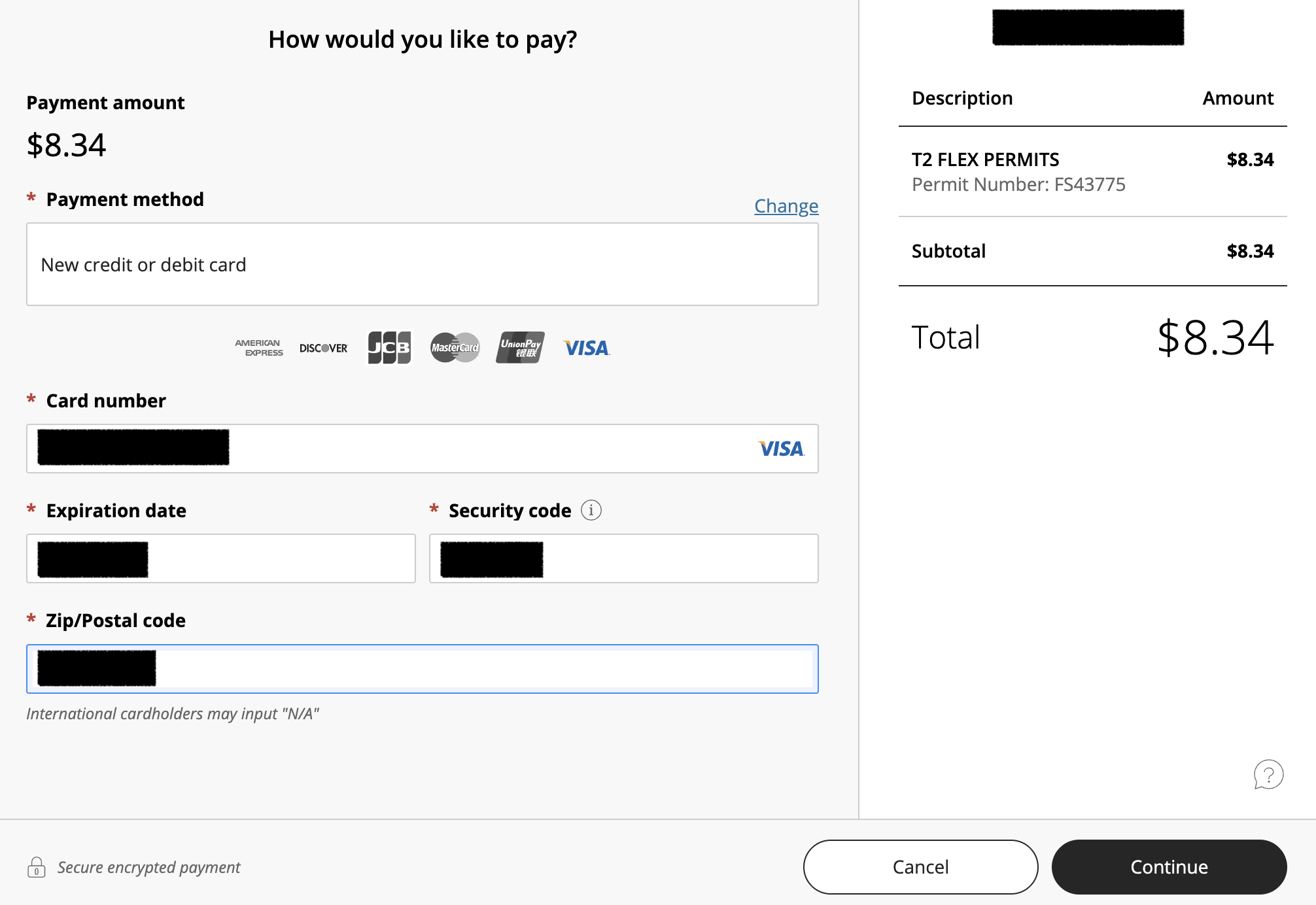
- Fill in all required fields. Click Continue.
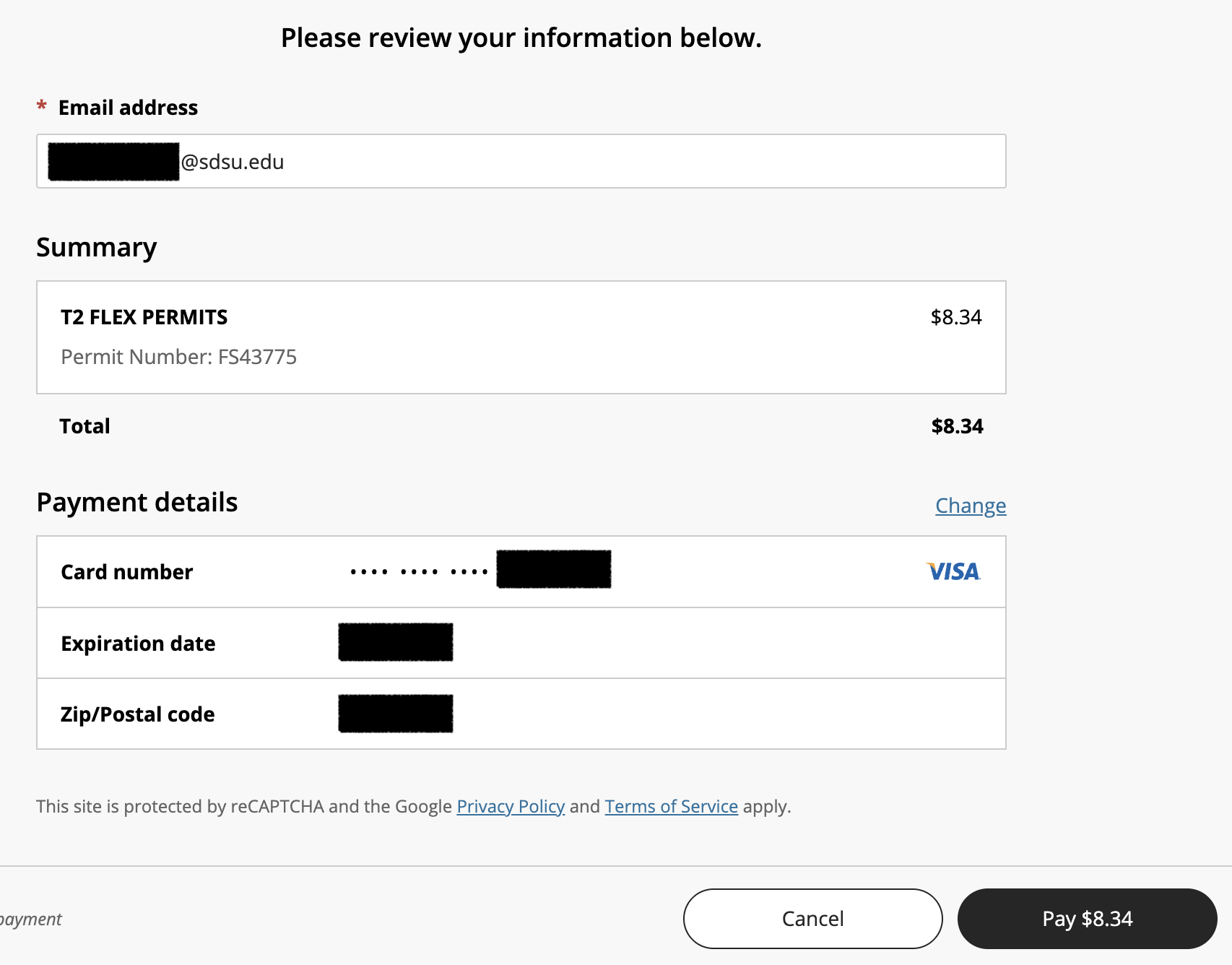
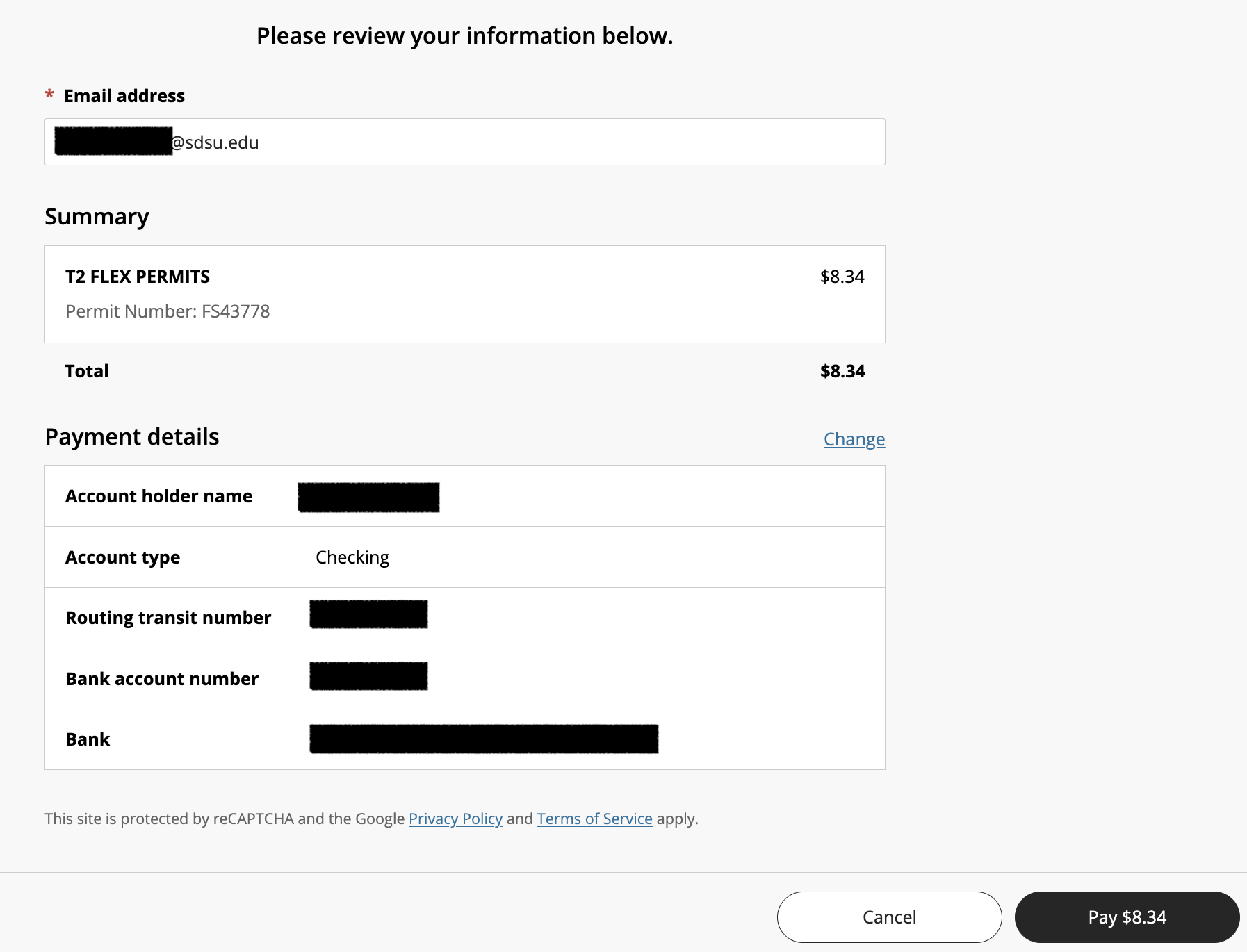
- Review your payment information. Click Pay. It will take a few moments before you are redirected back to the Transportation Portal. Do not click Pay twice.
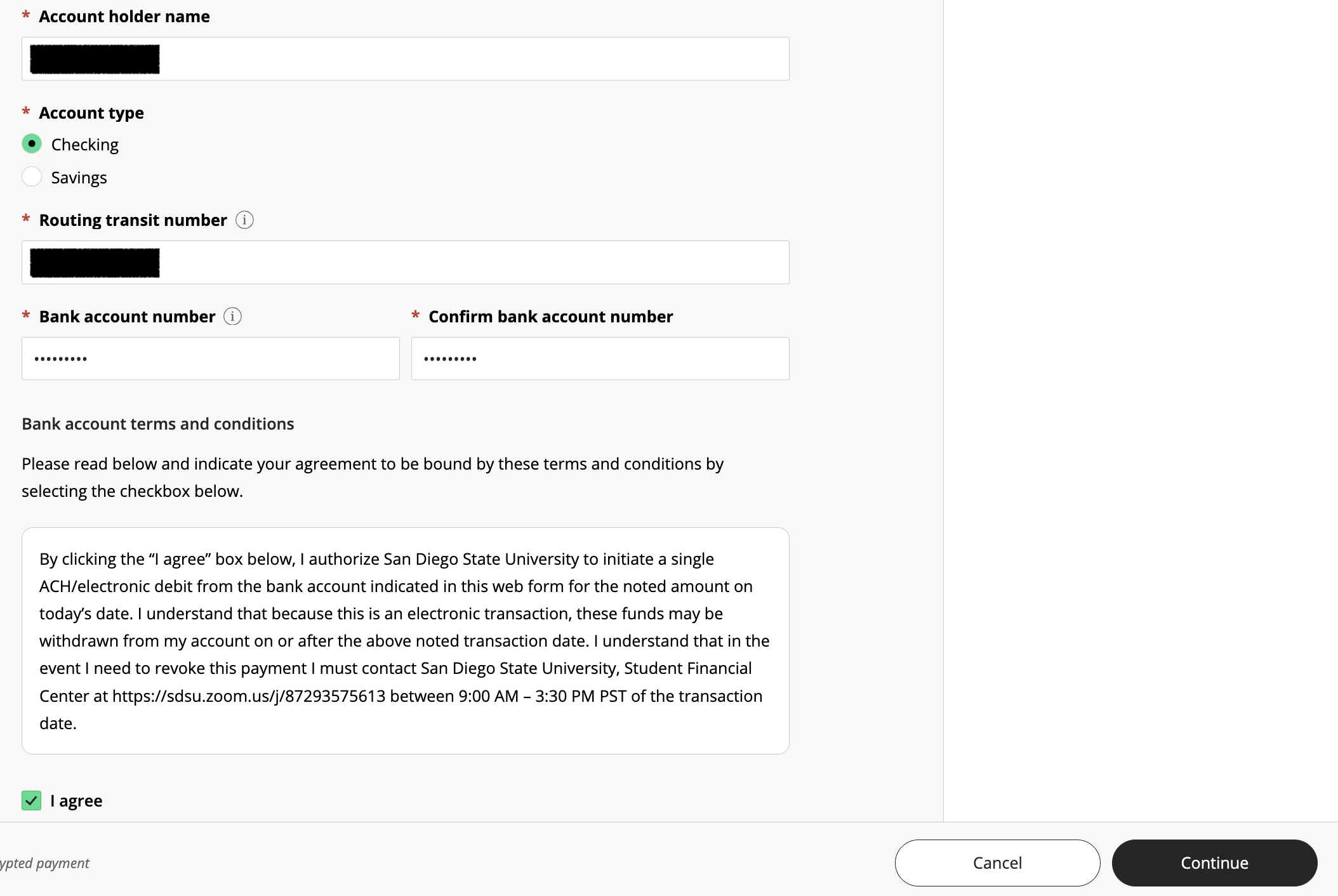
- [To pay by bank account] Fill in all required fields. Check I agree, and then click Continue.
- [To pay by bank account] Review payment information and then click Pay. It will take a few moments before you are redirected back to the Transportation Portal. Do not click Pay twice.
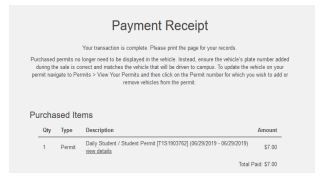
- You will be redirected to the Payment Receipt page when the payment is successful. You will also receive a confirmation email.
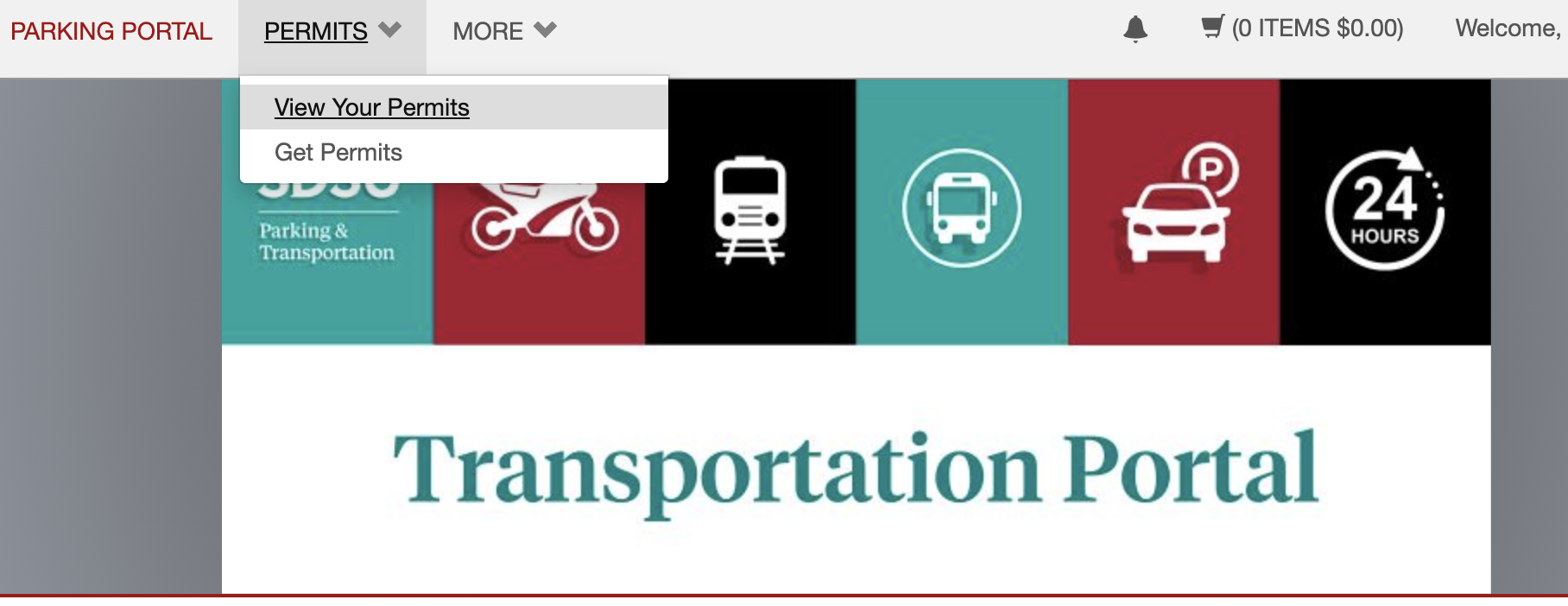
- To ensure the permit is in your account and linked to your vehicle(s), click Permits and then View Your Permits.
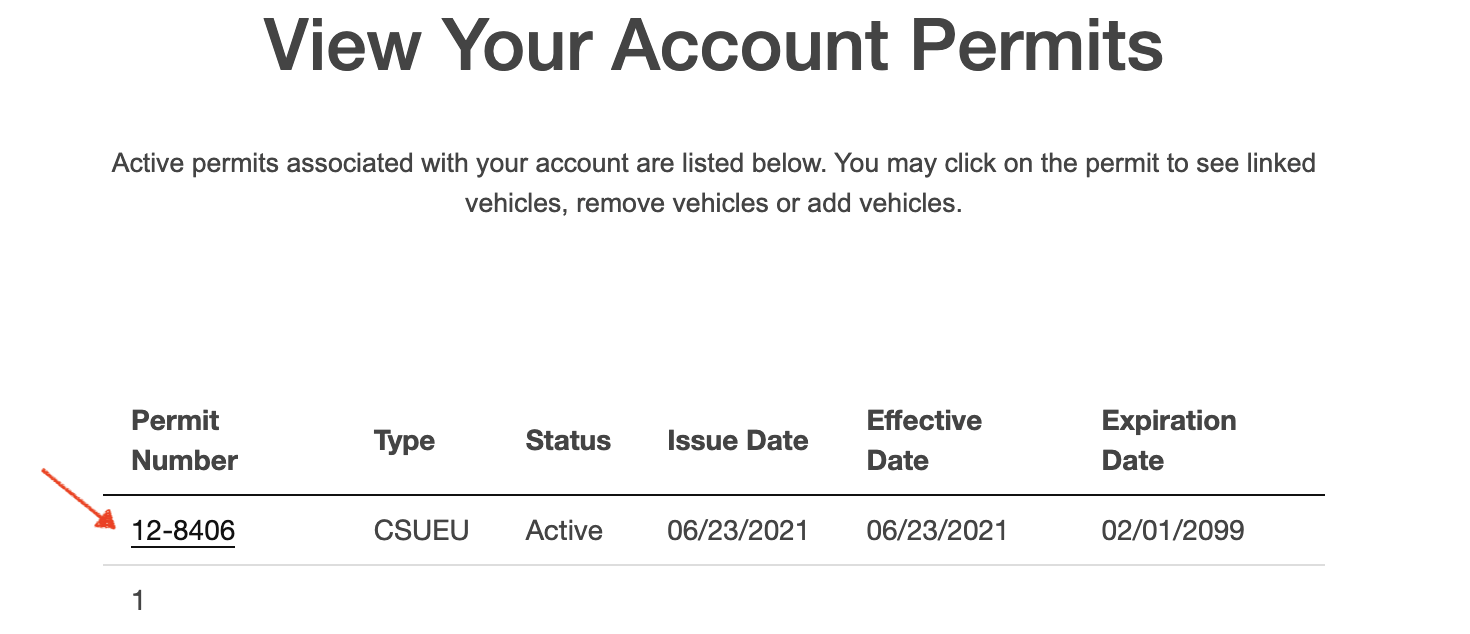
- The permit number should be listed. Click on the permit number.
- You should see the vehicles linked to your permit.
For visitors
- Go to https://aztecs.t2hosted.com/Account/Portal using Microsoft Edge or Mozilla Firefox.
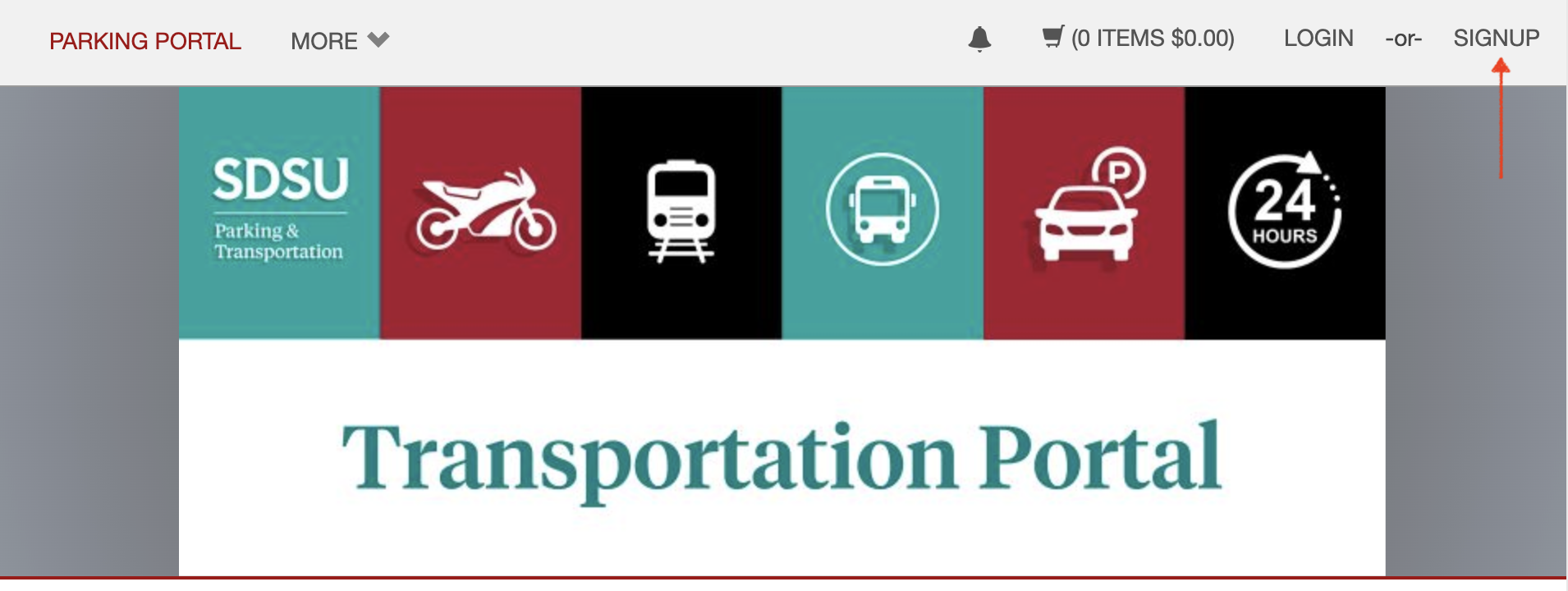
- Click on SIGNUP.
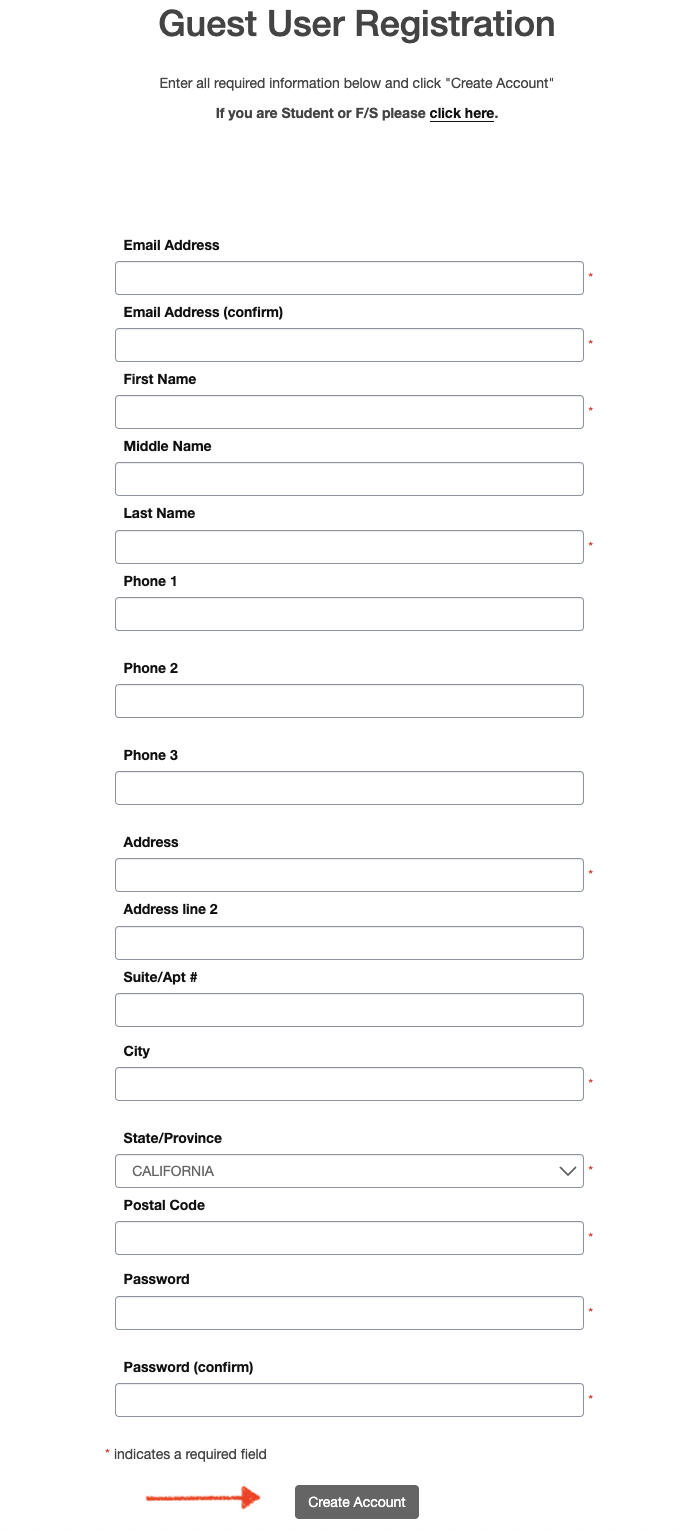
- Enter the information requested. Passwords must be 9-20 characters and contain at least one uppercase letter, one lowercase letter, one numeric value and one special character. Click Create Account.
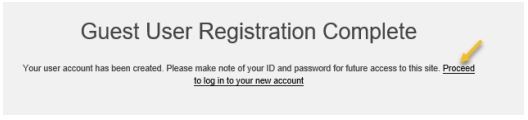
- After successfully creating your account, click Proceed to log in to your new account.
- Enter your email address and password that you created. Click Log In.
- Next, click PERMITS, and then click Get Perimts to purchase a permit.
- Click Next.
- Select the check box next to the permit you would like to purchase. Check the boxes agreeing to the terms. Click Next.
- If you are purchasing a daily, weekly or monthly permit, select the date you would like the permit to start. Do not select an end date. Click Next.
- Check the box(es) for any vehicles you wish to add to the permit. Or, if you need to add a new vehicle, click Add vehicle and follow the prompts. Then click Next.
- If additional permit(s) are needed, complete steps 11-15.
- Review your cart and email address that you would like your receipt sent to. Click Pay Now.
- Your permit number and total will be displayed again. Click Checkout.
- Select your Method of Payment. Click Continue. To pay by bank account, skip to Step 17.
- Fill in all required fields. Click Continue.
- Review your payment information. Click Pay. It will take a few moments before you are redirected back to the Transportation Portal. Do not click Pay twice.
- [To pay by bank account] Review payment information and then click Pay. It will take a few moments before you are redirected back to the Transportation Portal. Do not click Pay twice.
- [For electronic checks] Check I agree and click Submit Payment.
- You will be redirected to the Payment Receipt page when the payment is successful. You will also receive a confirmation email.
- To ensure the permit is in your account and linked to your vehicle(s), click Permits and then View Your Permits.
- The permit number should be listed. Click on the permit number.
- You should see the vehicles linked to your permit.